How to Send an AI Employee to a Meeting
A practical walkthrough of how to deploy an AI Employee into a live Zoom meeting, including the brief, the invite, and what to expect when the call ends.
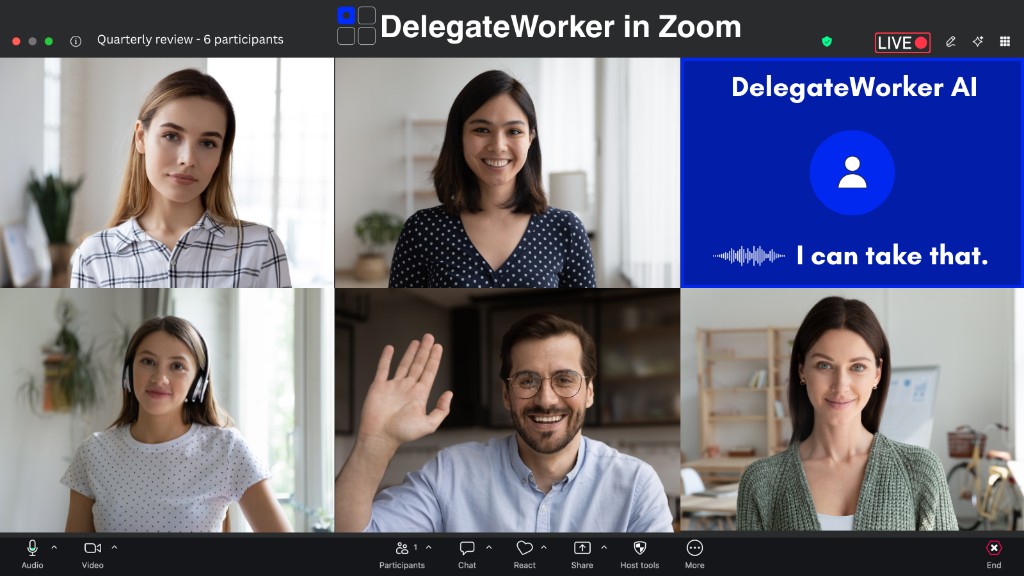
People ask this question expecting a complicated technical answer. The actual answer is straightforward. Here is the full setup walkthrough.
Step 1: Write the brief
Before you deploy an AI Employee to any meeting, you write a brief. This is the most important step: everything else is mechanical.
The brief is a plain-language document that tells the AI Employee what the meeting is about and what it should do. Think of it as the onboarding note you would write for a new team member before their first call.
A good brief covers:
- What this meeting type is. First-round interview, client check-in, sales demo, intake call.
- What role the AI Employee plays. Observer and note-taker? Active interviewer? Signal-tracker?
- What questions to ask, if the AI Employee is conducting a structured interview or intake.
- What signals to track, if the AI Employee is monitoring a sales or client call.
- What the output should look like. A structured log? A summary? A scored response sheet?
You only write this brief once per meeting type. After that, the AI Employee uses it every time you deploy it to that kind of call.
A brief for a first-round recruiting screen might look like this in plain language: "You are the first-round interviewer for a customer support role. Ask the five questions listed below. Capture the candidate's response to each one verbatim. Note any follow-up they offered on their own. Deliver the output as a formatted summary with one section per question."
That is it. No programming required.
Step 2: Create the AI Employee
In DelegateWorker, you create an AI Employee by uploading or pasting your brief and giving the AI Employee a name. The name is what will appear in the meeting participant list.
Some teams name their AI Employees by role: "DW Recruiting," "DW Sales," "DW Client." Others give them more specific names for specific clients or use cases.
The name choice matters for transparency. Meeting participants will see the AI Employee's name in the participant list. A name that reflects what the AI Employee is there to do sets the right context.
Step 3: Add the AI Employee to the meeting invite
You invite the AI Employee to the meeting the same way you would invite any other attendee. Copy the AI Employee's meeting link from DelegateWorker and add it to the calendar invite as an invitee or a join link.
When the meeting starts, the AI Employee joins automatically. You do not have to trigger anything manually.
This is the step that surprises most people. There is no separate app open on your screen, no Chrome extension, no manual "start recording" button. The AI Employee joins the meeting as a participant. If you are attending, you will see it in the participant list. If you are not attending, it joins on its own. Delegate your seat.
Step 4: Run the meeting normally
During the call, the AI Employee operates according to its brief.
If it is an active interviewer (like a recruiting AI Employee), it will speak during the meeting and ask the questions in its brief. Participants hear it and respond to it.
If it is a signal-tracker (like a sales AI Employee), it listens and monitors without speaking unless its brief specifies otherwise.
You do not need to manage it during the call. Write the brief well upfront, and it handles the session.
Step 5: Review the output
When the meeting ends, the AI Employee delivers structured output based on its brief. You receive this in your DelegateWorker dashboard.
This is not a raw transcript. It is the formatted output the brief specified. A recruiting summary with one section per interview question. A sales call log with flagged objection signals. A client check-in report with decisions and action items.
The output arrives shortly after the meeting ends. You review it, act on what matters, and move on.
What participants see
This is the question most people have before they deploy for the first time.
Participants see the AI Employee's name in the participant list. They know something called "DW Recruiting" or "DW Sales" is in the meeting. They can hear it speak if its brief involves speaking.
There is no hidden layer. The AI Employee is visible. That is by design: DelegateWorker is built around transparent deployment, not covert monitoring.
Most people brief their participants in advance, especially for the first time: "We use an AI Employee for first-round screens. It will ask the structured questions and capture responses. Here is what you should know about it." That context removes most of the friction.
What the whole workflow looks like
Write the brief once. Create the AI Employee. Add it to the invite. Run the meeting. Review the output.
For a recurring meeting type, the setup time is under 10 minutes for the initial brief. After that, each deployment is just adding an attendee to a calendar invite.
For teams running 10–50 structured calls per month, the cumulative time savings are significant. The setup investment is minimal.
DelegateWorker
Deploy your first AI Employee.
DelegateWorker turns AI models into named participants for Zoom meetings, live calls, and operational roles. Talk to an AI Employee live and see it in under 10 minutes.
Related reading